
Ciarán Baselmans
Comment connecter Google Workspace (Gemini) à FLEXIDESK (Réservation de bureaux via IA)
Le serveur MCP de FLEXIDESK permet de connecter FLEXIDESK directement à Google Workspace, afin de gérer la réservation de bureaux et les plannings en langage naturel avec Gemini.
Une fois connecté, Gemini peut faire plus que répondre à des questions — il peut effectuer de vraies actions dans FLEXIDESK, comme réserver ou annuler des bureaux, directement depuis des outils Google tels que :
- Google Chat
- Gmail
- Google Calendar (prompts contextuels)
- Gemini for Workspace
L’endpoint MCP et les détails du protocole sont documentés ici : 👉 Documentation FLEXIDESK MCP Server
Ce guide explique comment connecter FLEXIDESK à Google Workspace.
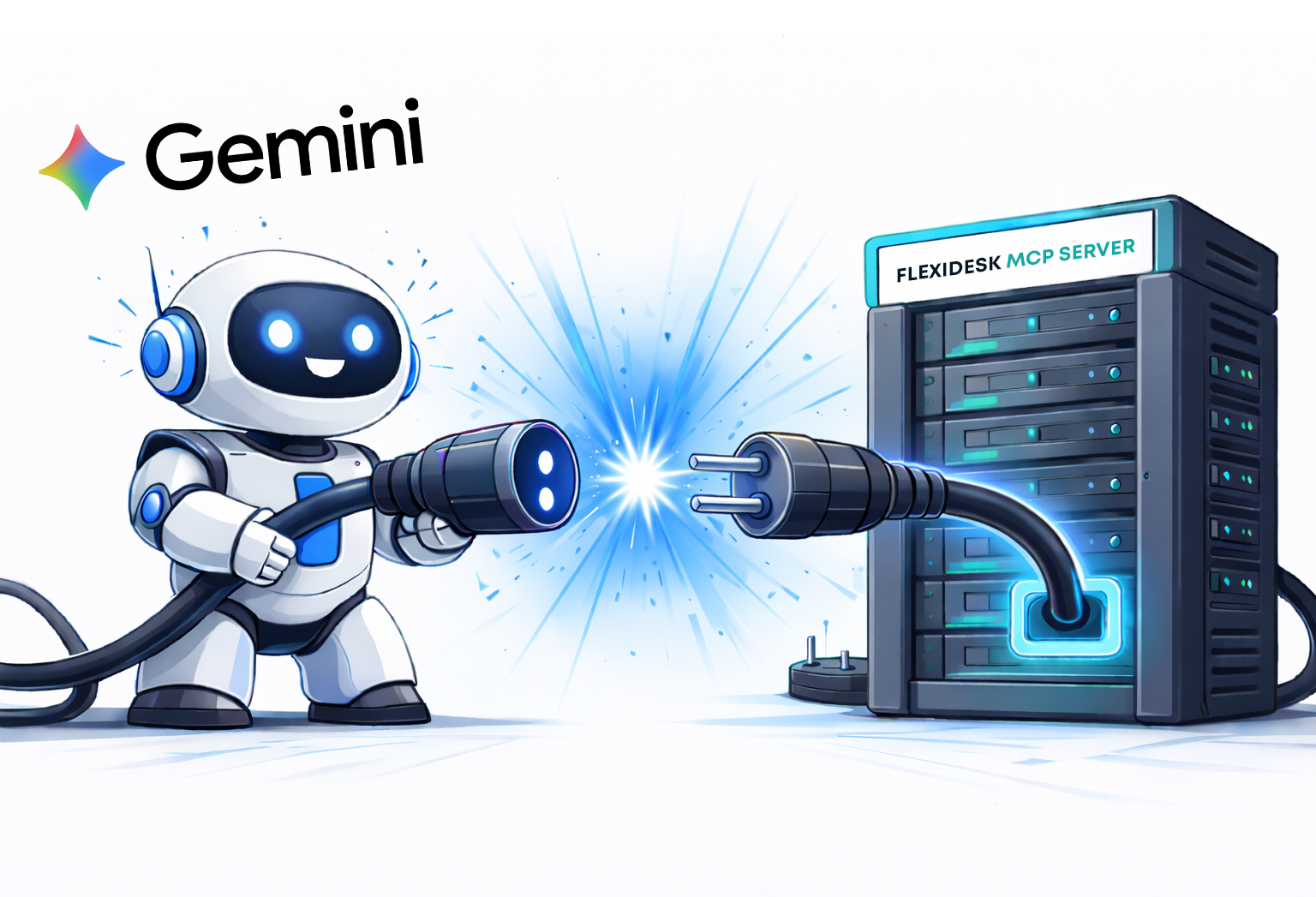
Ce que vous pouvez faire une fois connecté
Avec le serveur MCP FLEXIDESK connecté à Google Workspace, Gemini peut vous aider à :
- Consulter votre planning de bureau
- Consulter vos réservations personnelles
- Réserver des bureaux
- Annuler des réservations
Le tout en langage naturel, directement là où vous travaillez déjà.
Plus de détails : 👉 FLEXIDESK MCP Server docs
Qu’est-ce que MCP (rapidement)
MCP (Model Context Protocol) est un standard qui permet aux assistants IA d’appeler des systèmes externes de manière structurée et sécurisée.
Au lieu que Gemini ne fasse que suggérer des actions, MCP lui permet de :
- Récupérer des données réelles depuis FLEXIDESK
- Exécuter des actions (comme réserver des bureaux)
- Respecter les permissions et règles organisationnelles
FLEXIDESK expose ses fonctionnalités via MCP afin que des systèmes IA comme Gemini puissent interagir en toute sécurité.
Installation : connecter Google Workspace à FLEXIDESK
Étape 1 — Vérifiez que vous avez accès à FLEXIDESK
Vous aurez besoin de :
- Un compte FLEXIDESK
- Les permissions nécessaires pour utiliser les intégrations (selon les paramètres du workspace)
- Un compte Google Workspace avec accès à Gemini
Étape 2 — Copier l’URL du serveur MCP FLEXIDESK
C’est l’endpoint MCP que votre intégration Google Workspace appellera :
https://app.flexidesk.ai/mcp
(Comme indiqué dans la documentation FLEXIDESK MCP Server.)
Étape 3 — Créer une intégration Google Workspace (App / Extension)
Les intégrations Google Workspace sont généralement mises en œuvre sous forme de :
- Google Workspace Add-on
- Application Google Chat (bot)
- Ou outil Gemini adossé à un service HTTP
Dans Google Cloud Console :
- Créez un nouveau Google Cloud project
- Activez les APIs pertinentes (Chat API, Workspace Add-ons, OAuth)
- Enregistrez un Workspace Add-on ou Chat app
- Configurez-le pour appeler l’endpoint MCP FLEXIDESK
Au niveau global :
- Backend calls :
https://app.flexidesk.ai/mcp - Protocole : JSON-RPC compatible MCP via HTTPS
- Authentification : OAuth 2.0
Étape 4 — Configurer l’authentification OAuth avec FLEXIDESK
Pour permettre à Gemini d’agir au nom d’un utilisateur, l’authentification se fait via OAuth.
Pendant la configuration :
- Configurez les identifiants OAuth dans Google Cloud
- Utilisez FLEXIDESK comme fournisseur d’autorisation
- Demandez les scopes nécessaires (lecture des plannings, gestion des réservations)
- Les utilisateurs se connectent et approuvent l’accès
Cela garantit que Gemini n’a accès qu’à ce que l’utilisateur autorise explicitement.
Étape 5 — Exposer des actions à Gemini (Tools / Intents)
Une fois authentifié, mappez les capacités MCP de FLEXIDESK comme actions utilisables par Gemini.
Exemples :
showSchedulebookDeskcancelBooking
Gemini peut désormais décider quand appeler FLEXIDESK selon l’intention et le contexte (email, chat, calendar…).
Étape 6 — Tester dans Google Workspace
Essayez des prompts comme :
- Dans Google Chat : « Montre-moi mon planning de bureau pour cette semaine. »
- Dans Gmail (contextuel) : « Ai-je un bureau réservé le jour de cette réunion ? »
- Dans Gemini : « Réserve un bureau pour demain de 9h à 17h. »
Ces prompts déclenchent directement des appels MCP vers FLEXIDESK.
Exemples : 👉 FLEXIDESK MCP example prompts
Conseils (pour que ça fonctionne bien)
Soyez précis avec les dates et horaires
Commencez par des actions claires : Afficher / Réserver / Annuler
En cas de doute, demandez à Gemini de confirmer :
Quel bureau viens-tu de réserver pour moi ?
Cela évite les réservations involontaires.
Exemples de prompts réutilisables
Planning et jours au bureau
- « Quels jours suis-je réservé au bureau la semaine prochaine ? »
- « Montre mon planning FLEXIDESK pour la semaine prochaine. »
Réservation
- « Réserve un bureau jeudi de 09:00 à 17:00. »
- « Réserve un bureau près de John Doe mercredi. »
Annulations
- « Annule ma réservation de bureau pour vendredi. »
- « Annule toutes les réservations de bureau la semaine prochaine. »
Conclusion
Connecter FLEXIDESK à Google Workspace permet de réserver des bureaux dans le contexte — dans vos emails, chats et calendriers, pas dans un système séparé.
Un excellent exemple d’IA appliquée correctement :
- Moins de friction
- Moins d’outils
- Des actions claires et auditables
Si votre organisation fonctionne avec Google Workspace, cette intégration fait de FLEXIDESK une partie native du workflow plutôt qu’une application supplémentaire.