
Ciarán Baselmans
So verbindest du Microsoft Copilot mit FLEXIDESK (Desk Booking via KI)
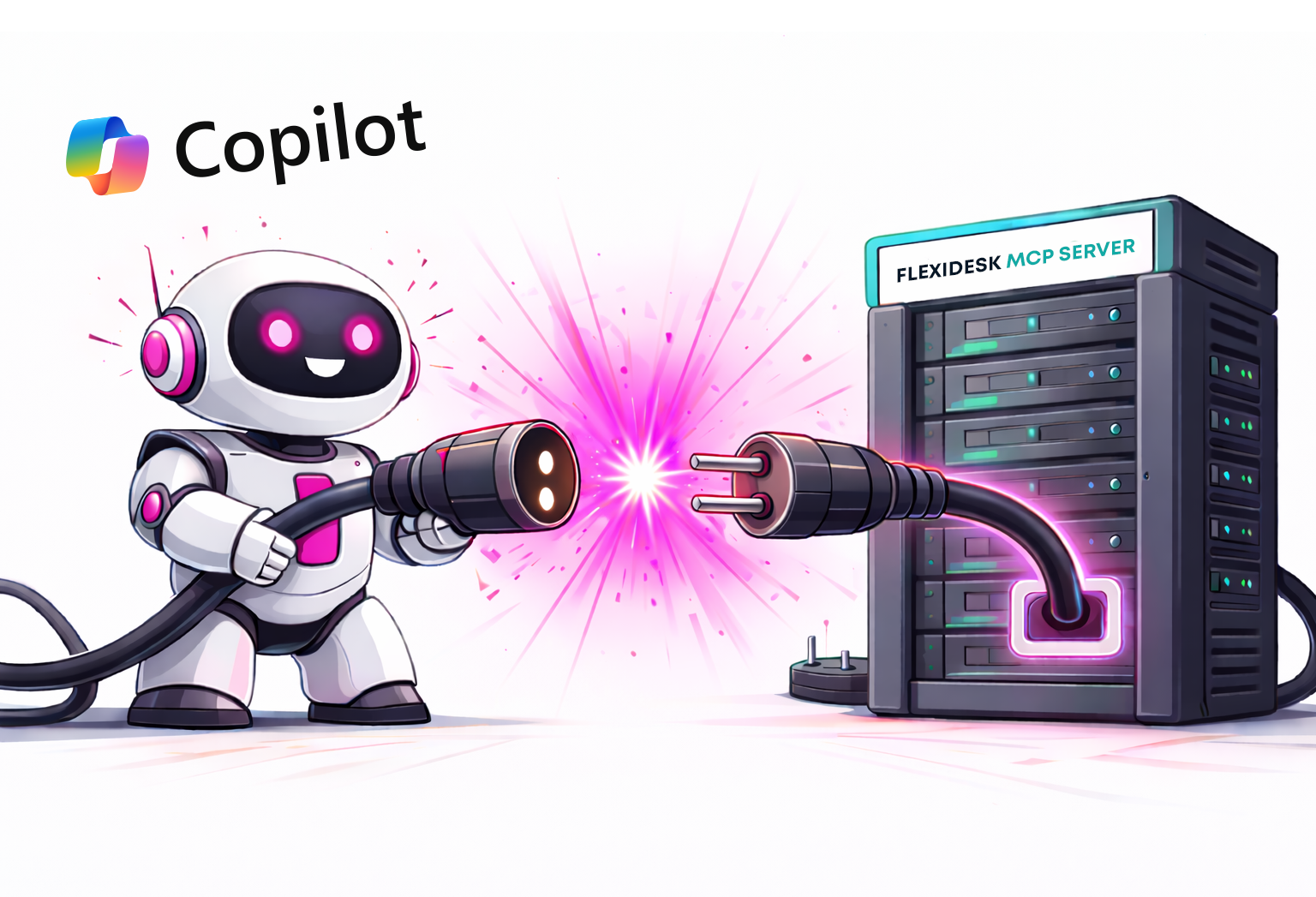
Der MCP Server von FLEXIDESK macht es möglich, FLEXIDESK direkt mit Microsoft Copilot zu verbinden. So kannst du Desk Booking und Zeitplanverwaltung per natürlicher Sprache innerhalb des Microsoft-Ökosystems steuern.
Sobald alles verbunden ist, kann Copilot echte Aktionen in FLEXIDESK ausführen — nicht nur Fragen beantworten.
Der offizielle MCP Endpoint und die Protokolldetails sind hier dokumentiert: 👉 FLEXIDESK MCP Server Dokumentation
Diese Anleitung zeigt dir Schritt für Schritt, wie du FLEXIDESK mit Microsoft Copilot verbindest.
Was du nach der Verbindung tun kannst
Mit dem FLEXIDESK MCP Server in Copilot kannst du:
- Deinen Büro-Zeitplan ansehen
- Deine persönlichen Desk-Buchungen ansehen
- Schreibtische buchen
- Schreibtischbuchungen stornieren
Direkt aus Copilot in Tools wie:
- Microsoft Teams
- Microsoft 365 Copilot
- Assistants auf Basis von Copilot Studio
Mehr Details: 👉 FLEXIDESK MCP Server Docs
Was ist MCP (kurz erklärt)
MCP (Model Context Protocol) ist ein Standard, der es KI-Assistenten ermöglicht, externe Systeme strukturiert und sicher aufzurufen.
Statt dass Copilot nur Aktionen vorschlägt, kann es mit MCP:
- Echte Daten abrufen
- Aktionen ausführen (z. B. Schreibtische buchen oder stornieren)
- Im Kontext der Systeme deiner Organisation bleiben
FLEXIDESK stellt seine Funktionen über MCP bereit, sodass Microsoft Copilot sicher und vorhersehbar damit interagieren kann.
Einrichtung: Microsoft Copilot mit FLEXIDESK verbinden
Schritt 1 — Stelle sicher, dass du Zugriff auf FLEXIDESK hast
Du brauchst:
- Ein FLEXIDESK-Konto
- Berechtigung, Integrationen zu nutzen (abhängig von Workspace-Policies)
- Zugriff auf Microsoft Copilot (Microsoft 365 Copilot oder Copilot Studio)
Schritt 2 — Kopiere die FLEXIDESK MCP-Server-URL
Das ist der MCP Endpoint, mit dem sich Copilot verbinden wird:
https://app.flexidesk.ai/mcp
(Wie in der FLEXIDESK MCP Server-Dokumentation beschrieben.)
Schritt 3 — Erstelle einen Copilot Connector (Copilot Studio)
Microsoft Copilot Integrationen werden über Copilot Studio konfiguriert.
- Öffne Copilot Studio
- Erstelle einen neuen Copilot (oder öffne einen bestehenden)
- Gehe zu Actions / Plugins / Connectors (Bezeichnung kann je nach Tenant variieren)
- Wähle Add custom connector / API
- Konfiguriere den Connector mit dem FLEXIDESK MCP Endpoint
Auf hoher Ebene:
- Base URL:
https://app.flexidesk.ai/mcp - Protokoll: MCP-kompatibles JSON-RPC über HTTPS
- Authentifizierung: OAuth 2.0 (siehe nächster Schritt)
FLEXIDESK’s MCP Server implementiert bereits die MCP Spezifikation, daher ist kein zusätzliches Schema-Mapping nötig.
Schritt 4 — Mit deinem FLEXIDESK Konto authentifizieren (OAuth)
Damit Copilot in deinem Namen handeln kann, erfolgt die Authentifizierung über OAuth.
Während der Connector-Einrichtung:
- OAuth mit FLEXIDESK als Authorization Provider konfigurieren
- Mit deinen FLEXIDESK Zugangsdaten anmelden
- Die angeforderten Scopes genehmigen (Zeitpläne lesen, Buchungen verwalten, etc.)
Nach Abschluss kann Copilot sicher auf FLEXIDESK zugreifen — nur innerhalb der Berechtigungen, die du erteilt hast.
Schritt 5 — Den Connector in Copilot aktivieren
Nachdem der Connector eingerichtet und authentifiziert ist:
- Copilot veröffentlichen oder aktualisieren
- Sicherstellen, dass die FLEXIDESK Action/Plugin aktiviert ist
- In den gewünschten Oberflächen verfügbar machen (Teams, Microsoft 365, etc.)
Ab diesem Punkt ist FLEXIDESK als Fähigkeit in Copilot verfügbar.
Schritt 6 — Teste es mit natürlicher Sprache
Öffne Copilot und probiere einfache Anfragen:
- „Zeig mir meinen Büro-Zeitplan für diese Woche.“
- „Buche einen Schreibtisch für morgen von 9 bis 17 Uhr.“
- „Storniere meine Schreibtischbuchung für Freitag.“
Diese entsprechen direkt den FLEXIDESK MCP Operationen: 👉 FLEXIDESK MCP Beispiel-Prompts
Tipps (damit es zuverlässig funktioniert)
Sei konkret bei Zeitspannen (z. B. „Donnerstag 09:00–17:00“)
Nutze klare Aktionen: Anzeigen / Buchen / Stornieren
Wenn du unsicher bist, bitte Copilot um Bestätigung:
Was hast du genau gebucht?
So vermeidest du unbeabsichtigte oder doppeldeutige Aktionen.
Beispiel-Prompts zum Wiederverwenden
Zeitplan und Bürotage
- „An welchen Tagen bin ich nächste Woche im Büro gebucht?“
- „Zeig mir meinen FLEXIDESK Zeitplan für nächste Woche.“
Buchung
- „Buche einen Schreibtisch für Donnerstag von 09:00 bis 17:00.“
- „Buche einen Schreibtisch in der Nähe von John Doe am Mittwoch.“
Stornierungen
- „Storniere meine Schreibtischbuchung für Freitag.“
- „Storniere alle Schreibtischbuchungen nächste Woche.“
Abschließende Gedanken
FLEXIDESK mit Microsoft Copilot zu verbinden macht Desk Booking zu einer natürlichen Erweiterung deines täglichen Workflows, genau dort, wo du ohnehin arbeitest.
Keine extra Tabs. Kein Kontextwechsel. Nur Intention → Aktion.
Für Teams, die bereits in Microsoft 365 investiert sind, ist das eines der klarsten Beispiele dafür, wie KI-gestützte Arbeit wirklich Zeit spart, statt ein weiteres Tool hinzuzufügen.