
Ciarán Baselmans
So verbindest du Claude Desktop mit FLEXIDESK (Desk Booking via KI)
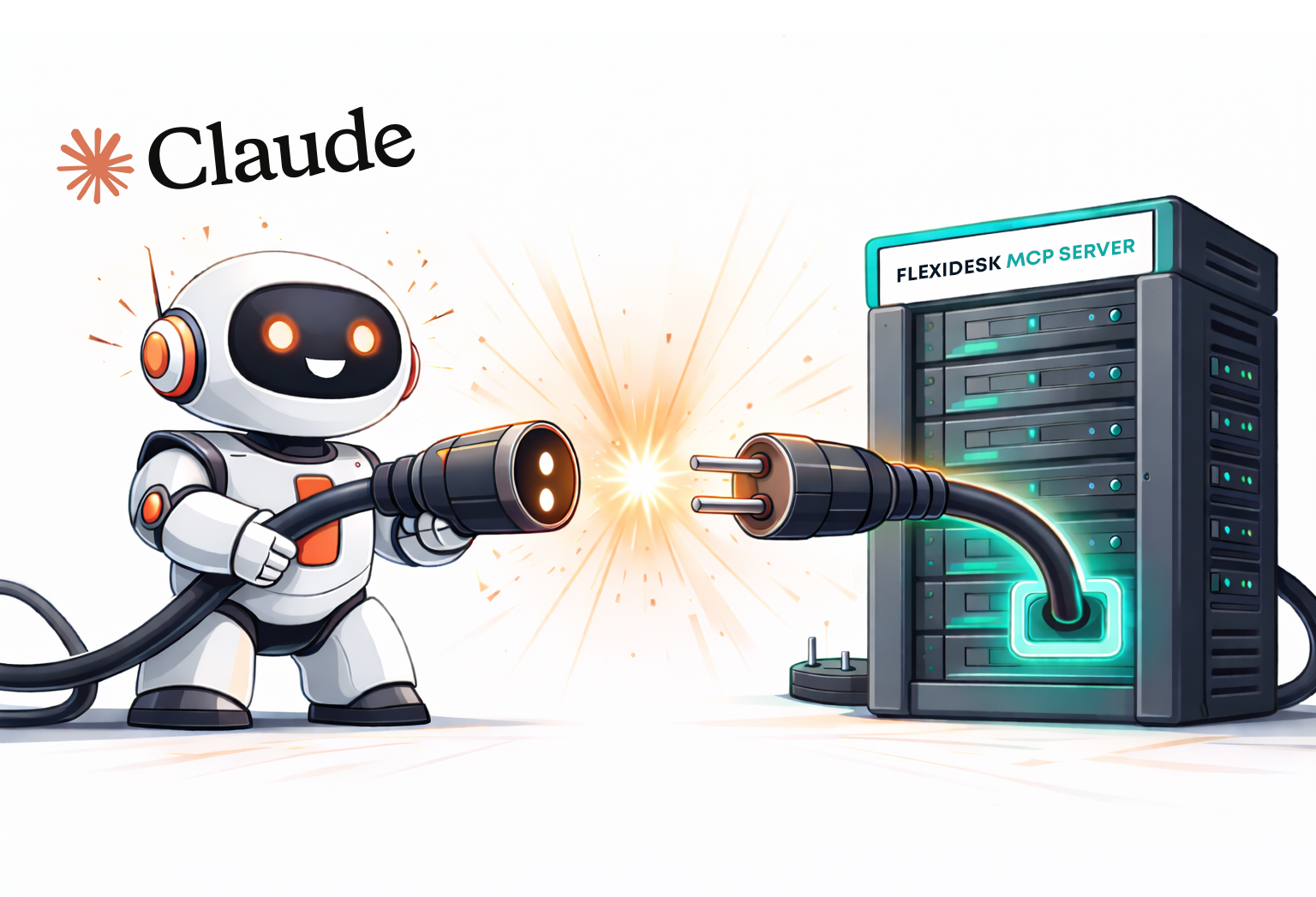
Der MCP Server von FLEXIDESK kann direkt mit Claude Desktop verbunden werden. So kannst du Desk-Buchungen per natürlicher Sprache verwalten — ganz ohne Code oder eigene Integrationen.
Claude Desktop bietet native MCP-Unterstützung, was es zu einer der einfachsten Möglichkeiten macht, KI-Assistenten mit echten Systemen wie FLEXIDESK zu verbinden.
Der offizielle FLEXIDESK MCP Endpoint ist hier dokumentiert: 👉 FLEXIDESK MCP Server Dokumentation
Diese Anleitung führt dich Schritt für Schritt durch die Einrichtung.
Was du nach der Verbindung tun kannst
Sobald der FLEXIDESK MCP Server verbunden ist, kann Claude dir helfen:
- Deinen Büro-Zeitplan anzusehen
- Deine persönlichen Desk-Buchungen anzusehen
- Schreibtische zu buchen
- Schreibtischbuchungen zu stornieren
Alles direkt in Claude Desktop.
Mehr Details: 👉 FLEXIDESK MCP Server Docs
Was ist MCP (kurz erklärt)
MCP (Model Context Protocol) ist ein Standard, der es KI-Assistenten wie Claude ermöglicht, sich strukturiert und sicher mit externen Tools zu verbinden.
Statt nur Ratschläge zu geben, kann Claude mit MCP:
- Echte Daten aus FLEXIDESK abrufen
- Echte Aktionen ausführen (z. B. Schreibtische buchen)
- Authentifizierung und Berechtigungen respektieren
Claude Desktop fungiert als MCP Client, FLEXIDESK stellt den MCP Server bereit.
Einrichtung: Claude Desktop mit FLEXIDESK verbinden
Schritt 1 — Stelle sicher, dass du Zugriff auf FLEXIDESK hast
Du brauchst:
- Ein FLEXIDESK-Konto
- Berechtigung, Integrationen zu nutzen (abhängig von deinen Workspace-Einstellungen)
- Claude Desktop installiert (aktuelle Version)
Schritt 2 — Kopiere die FLEXIDESK MCP-Server-URL
Das ist der MCP Endpoint, mit dem sich Claude verbinden wird:
https://app.flexidesk.ai/mcp
(Wie in der FLEXIDESK MCP Server-Dokumentation beschrieben.)
Schritt 3 — Öffne die Claude Desktop MCP-Konfiguration
Claude Desktop liest MCP Server Definitionen aus einer lokalen Config-Datei.
Unter macOS befindet sie sich normalerweise hier:
~/Library/Application Support/Claude/claude_desktop_config.json
(Unter Windows ist der Speicherort ähnlich unter AppData.)
Wenn die Datei noch nicht existiert, erstelle sie.
Schritt 4 — Füge den FLEXIDESK MCP Server hinzu
Füge FLEXIDESK als MCP Server in der Config-Datei hinzu:
{
  "mcpServers": {
    "flexidesk": {
      "url": "https://app.flexidesk.ai/mcp"
    }
  }
}
Speichere die Datei und starte Claude Desktop neu.
Nach dem Neustart erkennt Claude den FLEXIDESK MCP Server automatisch.
Schritt 5 — Mit deinem FLEXIDESK Konto authentifizieren (OAuth)
Beim ersten Zugriff auf FLEXIDESK wirst du aufgefordert, dich zu authentifizieren.
Das passiert über einen browserbasierten OAuth Flow:
- Claude öffnet ein Anmeldefenster
- Melde dich mit deinem FLEXIDESK Konto an
- Genehmige den Zugriff
Keine API Keys oder manuelle Token-Verwaltung nötig.
Danach kann Claude sicher in deinem Namen handeln.
Schritt 6 — Teste es in Claude Desktop
Öffne eine neue Unterhaltung und probiere etwas Einfaches:
- „Zeig mir meinen Büro-Zeitplan für diese Woche.“
- „Buche einen Schreibtisch für morgen von 9 bis 17 Uhr.“
- „Storniere meine Schreibtischbuchung für Freitag.“
Claude ruft den FLEXIDESK MCP Server automatisch auf, wenn nötig.
Beispiel-Prompts findest du hier: 👉 FLEXIDESK MCP Beispiel-Prompts
Tipps (damit es zuverlässig funktioniert)
Sei konkret bei Daten und Zeiten
Nutze klare Verben: Anzeigen / Buchen / Stornieren
Wenn du sicher gehen willst, bitte Claude um Bestätigung:
Sag mir, was du gleich buchen wirst, bevor du es ausführst.
Claude fragt bei kritischen Aktionen meistens automatisch nach.
Beispiel-Prompts zum Wiederverwenden
Zeitplan und Bürotage
- „An welchen Tagen bin ich nächste Woche im Büro gebucht?“
- „Zeig mir meinen FLEXIDESK Zeitplan für nächste Woche.“
Buchung
- „Buche einen Schreibtisch für Donnerstag von 09:00 bis 17:00.“
- „Buche einen Schreibtisch in der Nähe von John Doe am Mittwoch.“
Stornierungen
- „Storniere meine Schreibtischbuchung für Freitag.“
- „Storniere alle Schreibtischbuchungen nächste Woche.“
Abschließende Gedanken
Claude Desktop + FLEXIDESK MCP ist eine der reibungslosesten Möglichkeiten, KI-gestützte Workflows in den Alltag zu bringen.
Es gibt:
- Keine eigene UI
- Keine Plugins, die gebaut werden müssen
- Keine manuelle API-Key-Verwaltung
Nur Claude, direkt mit FLEXIDESK verbunden, und echte Arbeit wird erledigt.
Wenn Desk Booking etwas ist, das du häufig nutzt, wird diese Einrichtung schnell zu einer Integration, über die du gar nicht mehr nachdenkst — was meist das beste Zeichen ist.