
Ciarán Baselmans
So verbindest du ChatGPT mit FLEXIDESK (Desk Booking via KI)
Der neue MCP Server von FLEXIDESK macht es möglich, FLEXIDESK mit ChatGPT zu verbinden, sodass du Desk-Buchungen ganz einfach per natürlicher Sprache erledigen kannst. Die offizielle Einrichtung wird in der FLEXIDESK MCP Server Dokumentation erklärt.
Dieser Beitrag führt dich Schritt für Schritt durch die Einrichtung.
Was du nach der Verbindung tun kannst
Mit dem MCP Server von FLEXIDESK kann ChatGPT dir helfen:
- Deinen Büro-Zeitplan anzusehen
- Deinen persönlichen Zeitplan anzusehen
- Schreibtische zu buchen
- Schreibtischbuchungen zu stornieren
Mehr Infos: FLEXIDESK MCP Server Docs
Was ist MCP (kurz erklärt)
MCP (Model Context Protocol) ist ein Standard, der es Tools wie ChatGPT ermöglicht, sich strukturiert mit externen Systemen zu verbinden. Dadurch kann ChatGPT echte Aktionen ausführen (z. B. „einen Schreibtisch buchen“) statt nur Tipps zu geben.
Einrichtung: ChatGPT mit FLEXIDESK verbinden
Schritt 1 — Stelle sicher, dass du Zugriff auf FLEXIDESK hast
Du brauchst:
- Ein FLEXIDESK-Konto
- Berechtigung, Integrationen zu nutzen (abhängig von deinen Workspace-Einstellungen)
Schritt 2 — Kopiere die FLEXIDESK MCP-Server-URL
Das ist der Endpoint, mit dem sich ChatGPT verbinden wird:
https://app.flexidesk.ai/mcp
(Wie in der FLEXIDESK MCP Server-Dokumentation dokumentiert.)
Schritt 3 — FLEXIDESK in ChatGPT hinzufügen (Connector)
In ChatGPT:
- Öffne Einstellungen
- Gehe zu Apps (früher „Connectors“)
- Öffne die erweiterten Einstellungen und aktiviere den Entwicklermodus, um eigene Apps hinzuzufügen
- Klicke auf App erstellen
- Konfiguriere die App mit der MCP URL so:
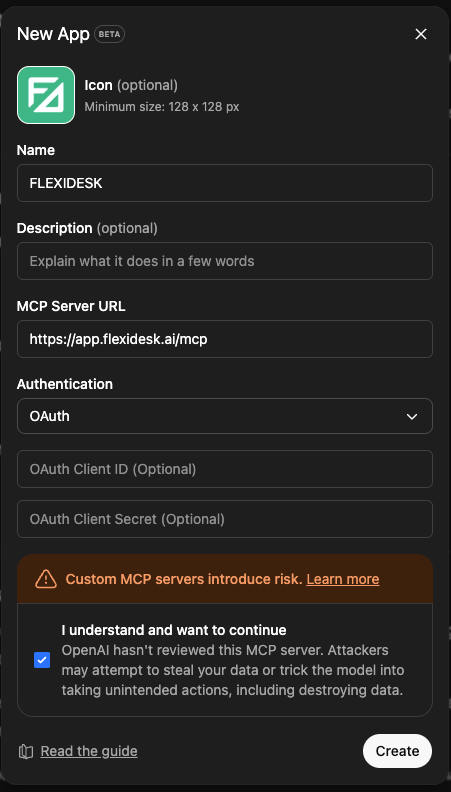
Wenn du neu bei MCP Apps in ChatGPT bist, ist OpenAI-Anleitung hilfreich: Connect from ChatGPT
Schritt 4 — Mit deinem FLEXIDESK Konto authentifizieren (OAuth)
Damit ChatGPT sicher auf FLEXIDESK zugreifen kann, authentifizierst du dich über OAuth.
Klicke im App-Setup auf „Mit FLEXIDESK anmelden“ (oder ähnlich), dann:
- Melde dich bei deinem FLEXIDESK Konto an
- Genehmige den Zugriff
Das war’s.
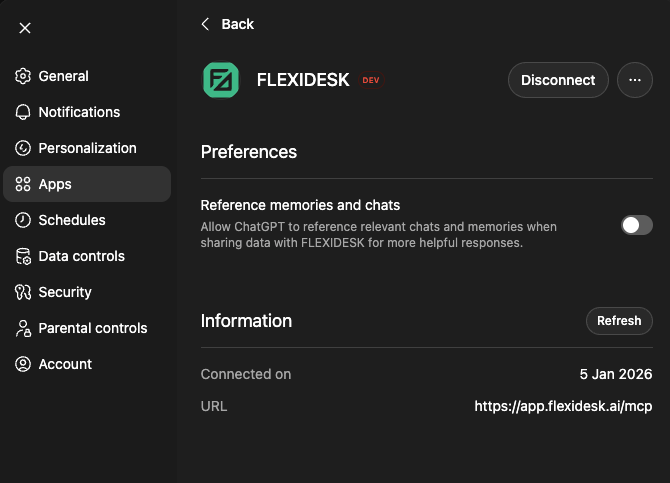
Nach erfolgreicher Authentifizierung sollte die App etwa so aussehen:
Schritt 5 — Teste es in einer Unterhaltung
Öffne einen Chat, in dem die App aktiviert ist, und probiere etwas Einfaches:
- „Zeig mir meinen Büro-Zeitplan für diese Woche.“
- „Buche einen Schreibtisch für morgen.“
- „Storniere meine Schreibtischbuchung für Freitag.“
Diese entsprechen den empfohlenen Beispielen in den Docs: FLEXIDESK MCP Prompts
Tipps (damit es zuverlässig funktioniert)
- Sei konkret bei Zeiten: „Donnerstag 9–17 Uhr“ funktioniert besser als „irgendwann Donnerstag“
- Nutze klare Aktionen: Starte Prompts mit Buchen / Anzeigen / Stornieren
- Wenn etwas komisch aussieht: Frag zuerst „Was hast du gebucht?“, bevor du davon ausgehst, dass es erledigt ist
Beispiel-Prompts zum Kopieren
Zeitplan und Bürotage
- „An welchen Tagen bin ich nächste Woche im Büro gebucht?“
- „Zeig mir meinen FLEXIDESK Zeitplan für nächste Woche.“
Buchung
- „Buche einen Schreibtisch für Donnerstag 09:00–17:00.“
- „Buche einen Schreibtisch in der Nähe von John Doe am Mittwoch.“
Stornierungen
- „Storniere meine Schreibtischbuchung für Freitag.“
- „Storniere alle Schreibtischbuchungen nächste Woche.“
Abschließende Gedanken
Sobald alles verbunden ist, sorgt FLEXIDESK + ChatGPT für weniger Reibung im Alltag: weniger Klicks, weniger Tabs und weniger Zeit, die man mit Suchen in verschiedenen Tools verbringt.
Wenn Desk Booking etwas ist, das du häufig machst (oder wenn eure Office-Regeln davon abhängen), ist es ein überraschend hilfreiches Upgrade.