
Ciarán Baselmans
How to Connect ChatGPT to FLEXIDESK (Desk Booking via AI)
FLEXIDESK’s new MCP Server makes it possible to connect FLEXIDESK to ChatGPT, so you can handle desk bookings using natural language. The official setup is covered in the FLEXIDESK MCP Server documentation.
This post walks you through the setup.

What you can do once it’s connected
with FLEXIDESK’s MCP server, ChatGPT can help you:
- View your office schedule
- View your personal schedule
- Book desks
- Cancel desk bookings
For more info: FLEXIDESK MCP Server docs
What is MCP (quickly)
MCP (Model Context Protocol) is a standard that lets tools like ChatGPT connect to external systems in a structured way. This means ChatGPT can do real actions (like “book a desk”) instead of just giving advice.
Setup: Connect ChatGPT to FLEXIDESK
Step 1 — Make sure you have access to FLEXIDESK
You’ll need:
- A FLEXIDESK account
- Permission to use integrations (depending on your workspace settings)
Step 2 — Copy the FLEXIDESK MCP server URL
This is the endpoint ChatGPT will connect to:
https://app.flexidesk.ai/mcp
(As documented in the FLEXIDESK MCP Server guide.)
Step 3 — Add FLEXIDESK in ChatGPT (Connector)
In ChatGPT:
- Open Settings
- Go to Apps (Previously called Connectors)
- Go to Advanced settings and toggle on Developer Mode to add custom Apps
- Click Create app
- Configure the app with the MCP url like so:
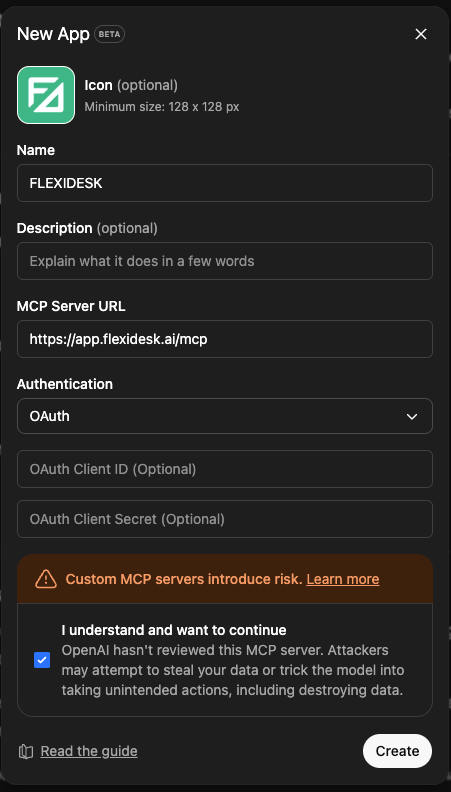
If you’re new to MCP Apps in ChatGPT, OpenAI’s guide is helpful: Connect from ChatGPT
Step 4 — Authenticate with your FLEXIDESK account (OAuth)
To let ChatGPT access FLEXIDESK securely, you’ll authenticate using OAuth.
In the app setup, click “Sign in with FLEXIDESK” (or similar), then:
- Log in to your FLEXIDESK account
- Approve access
That’s it.
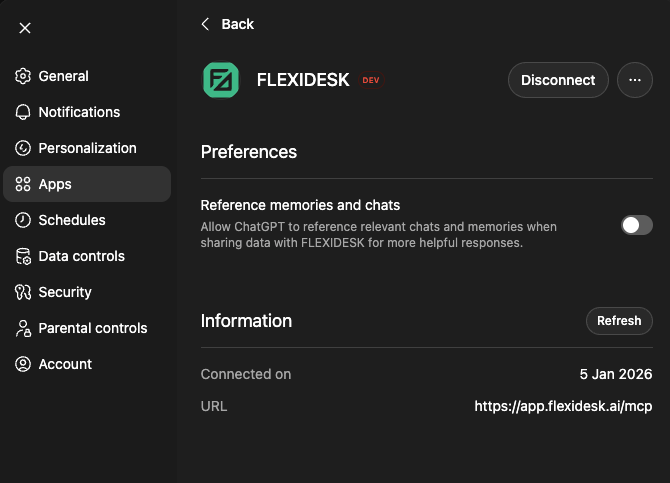
After successful authentication, the app should look something like this:
Step 5 — Test it in a conversation
Open a chat where the app is enabled and try something simple:
- “Show my office schedule for this week.”
- “Book a desk for tomorrow.”
- “Cancel my desk booking for Friday.”
These map closely to FLEXIDESK’s suggested examples in the docs: FLEXIDESK MCP prompts
Tips (so it works reliably)
- Be explicit with time: “Thursday 9–17” works better than “sometime Thursday”
- Use clear actions: start prompts with Book / Show / Cancel
- If something looks wrong: ask “what did you book?” before assuming it’s done
Example prompts you can steal
Schedule and office days
- “What days am I booked in the office next week?”
- “Show my FLEXIDESK schedule for next week.”
Booking
- “Book a desk for Thursday 09:00–17:00.”
- “Book a desk near John Doe on Wednesday.”
Cancellations
- “Cancel my desk booking for Friday.”
- “Cancel all desk bookings next week.”
Final thoughts
Once connected, FLEXIDESK + ChatGPT focuses on reducing everyday friction: fewer clicks, fewer tabs, and less time spent searching across interfaces.
If desk booking is something you do often (or if your office rules depend on it), it’s a surprisingly useful upgrade.